بررسی و رتبهبندی ۷ لانچر محبوب اندروید؛ از Nova تا Niagara
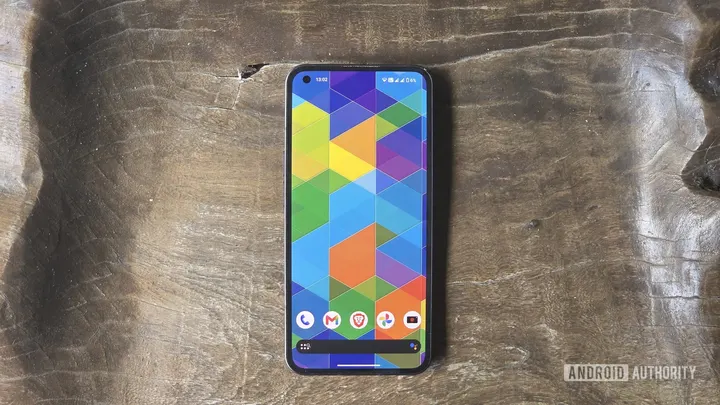
بررسی و رتبهبندی هفت لانچر برتر اندروید نشان میدهد که Niagara Launcher به عنوان بهترین گزینه مینیمالیستی در صدر قرار دارد. در مقابل، Nova Launcher به دلیل افزایش تبلیغات و افت کیفیت در رتبههای پایینتر جای گرفته است.
لانچرهای پیشفرض شرکتهای Google، Samsung و Motorola اگرچه در سالهای اخیر بهبود یافتهاند، اما همچنان محدودیتهایی در شخصیسازی ایجاد میکنند. برای تغییر ظاهر و عملکرد رابط کاربری اندروید، استفاده از لانچرهای شخص ثالث بهترین راهکار محسوب میشود.
در بررسی جدیدی که روی ۷ لانچر محبوب انجام شده، Nova Launcher که روزگاری محبوبترین لانچر اندروید بود، در رتبه هفتم قرار گرفته است. تغییر مالکیت، افزایش تبلیغات در نسخه رایگان، درخواستهای زیاد برای دسترسی و قیمت بالای اشتراکها از دلایل افت این لانچر قدیمی است. در رتبه ششم Action Launcher قرار دارد که قابلیتهای کاربردی مانند Quickdrawer دارد اما سرعت پائین انیمیشنها و درخواستهای ارتقای پولی از نقاط ضعف آن است.
لانچر Lawnchair در رتبه پنجم جای گرفته که گزینهای رایگان و متنباز برای شباهت به Pixel UI است اما سرعت بهروزرسانی آن کند است. Hyperion Launcher در رتبه چهارم قرار دارد که برای گوشیهای قدیمیتر بسیار سریع و سبک عمل میکند. Microsoft Launcher رتبه سوم را به خود اختصاص داده که برای کاربران اکوسیستم Windows و مجموعهابزارهای Microsoft گزینهای ایدهآل و رایگان است.
رتبه دوم به Smart Launcher تعلق گرفته که به صورت هوشمند برنامهها را در دستهبندیهای جداگانه مرتب میکند و ظاهر بسیار مدرنی دارد. در نهایت، Niagara Launcher به عنوان بهترین لانچر انتخاب شده است؛ یک لانچر مینیمالیستی، سریع و بدون تبلیغات که قابلیتهای مدیریت اعلانها و کاهش حواسپرتی فوقالعادهای ارائه میدهد، هرچند قیمت نسخه لایفتایم آن بالا است.
I tested the 7 most popular Android launchers — here’s my ranking
Default launchers from Google, Samsung, and Motorola have admittedly gotten more feature-rich and pleasing to the eye in recent years. However, they still implement some restrictions to prevent users from straying too far from their signature aesthetics. For example, you can’t remove the Google Search bar from the Pixel UI home screen. Similarly, you can’t replace the Google News app on the left of the homepage. The…
Affiliate links on Android Authority may earn us a commission. Learn more.
I tested the 7 most popular Android launchers — here's my ranking
Oct 30, 2026 — 6:00 AM ET
Default launchers from Google, Samsung, and Motorola have admittedly gotten more feature-rich and pleasing to the eye in recent years. However, they still implement some restrictions to prevent users from straying too far from their signature aesthetics.
For example, you can’t remove the Google Search bar from the Pixel UI home screen. Similarly, you can’t replace the Google News app on the left of the homepage. The same goes for the default launchers of Samsung and Motorola. You’re only allowed to turn off Google’s News app completely and lose that virtual real estate.
If you want to customize the look and feel of your Android phone, there’s no better way than installing a third-party launcher. It changes the design of your home screen and app drawer, while providing additional customization options and features to make the user interface truly yours.
Searching for the perfect launcher can be overwhelming, as developers are great at selling the promise of greater functionality over stock Android launchers. To make your decision easier, I’ve listed seven of the most popular launchers on the Google Play Store and ranked them from my personal worst to best based on their design, smoothness, features, customization, and developer updates.
Which of these Android launchers do you primarily use?
7. Nova Launcher
If you’ve looked into third-party launchers before, chances are you’ve installed Nova Launcher at some point. It was the gold standard for ages. It offered slick animations and consistent feature updates from its developer, all while looking cleaner than other popular apps. Today, Nova Launcher continues to impress with tons of customization. I love how I can edit widget-like cards on Nova Now to the left of the home screen. I can also adjust the look of icons and folders on both the homepage and app drawer.
There are a few features like gesture editing and notification badges tied behind a paywall, but they’re not essential to the overall fluidity of Nova Launcher. So, why the low rank? Nova Launcher has been on a steady decline since its change in ownership. The app is now riddled with ads in the free version, and there are lots of trackers and permission requests for Nova AI. It’s overly intrusive for a once-lightweight launcher.
Long-time users have already ditched the launcher in favor of newer, superior options. It’s really sad to see the former king of Android launchers fall to its current state. Several competitors have overtaken Nova Launcher by this point. If you do plan on purchasing Nova Prime, it’s a one-time fee of $30. For a monthly fee of $15 or $100 annually, you get Nova Plus, which includes Nova AI. No thanks.
6. Action Launcher
Here’s a turn-off: Action Launcher immediately asked me to pay for its Plus tier the moment I installed the app. It wasn’t even a gentle nudge, but a pop-up directly rooted to my Google Play account so I’d only have to tap once to make the purchase. While I don’t mind paying for worthy apps, this introduction went too far.
Once I got past the list of premium features I’d unlock with its higher tier, Action Launcher was pleasantly usable. Even in its free state, the app looks and feels usable. Swiping to the right brings up Quickdrawer, an alphabetical list of all my apps; swiping the opposite way presents Shutters, which is a vertical panel that houses all the widgets I drag inside. Shutters is an intuitive hub for controlling apps and previewing feeds without having to enter said apps or swiping to another screen.
Action Launcher asked me to pay for its Plus tier the moment I installed the app.
Quicktheme is another signature Action Launcher feature. It instantly matches the interface’s color coding with my chosen wallpaper. It’s a convenient way to hit the ground running with this launcher. Each color can then be modified after the initial setup. However, despite its “Quick” branding, Action Launcher has the slowest transitions on this list and is prone to accidental swipes leading to the wrong screens. This doesn’t give me confidence in paying its one-time $7 fee for Plus.
5. Lawnchair
Lawnchair is perhaps the best launcher for first-time Samsung Galaxy users who’ve come from a Pixel. This launcher emulates Pixel UI while offering more customization and features. It’s totally free and open source, making it free of ads and paywall-locked functions. First impressions are fantastic, too. As soon as I installed the app and made it my default launcher, Lawnchair didn’t advertise anything or walk me through its features. It’s the most straightforward and user-friendly launcher on this list.
Lawnchair’s customization options are more extensive than a Pixel’s, yet somewhat lacking compared to the other six launchers we have here. Aside from the usual folder and gesture customization, there are a few standout features, such as Caddy for automatic app drawer grouping and a more robust At a Glance widget on top of the home screen. What its minimalist UI lacks in customization is made up for with its smooth performance. Swiping through Lawnchair’s interface is breezy.
The only real downside is the lack of updates from the developer. As of writing, the last update arrived in April 2026. Not to say that monthly updates would always improve the existing experience, but with every other launcher on this list consistently dishing out new features, Lawnchair sometimes feels stale in comparison. Plus points for being the only app here to exclude the word “Launcher” in its name.
4. Hyperion Launcher
Hyperion Launcher is another Pixel-style launcher, with a greater focus on speed this time. It looks more modern compared to Lawnchair, but isn’t as bloated as Nova Launcher. Hyperion Launcher is ideal for those who want something fast to use and easy to set up. Its main settings are nicely grouped, resulting in straightforward adjustments wherever needed. I can also tap the search icon to find specific options.
This launcher is particularly fast on my four-year-old mid-range phone. Hyperion Launcher genuinely feels like it was designed with older, slower phones in mind. It’s the one app on this list that strikes the perfect balance between customization, fluidity, and developer support. I appreciate how the free tier lets me tweak the colors, icons, and animations without fuss. My only knock against Hyperion Launcher is how boring it feels. It behaves like it’s meant to be installed, set up, and left alone. Not that there’s anything wrong with that, but the higher-ranked launchers on this list have a stronger identity beyond just being fast.
Hyperion Launcher genuinely feels like it was designed with older, slower phones in mind.
Hyperion Supreme is the app’s pro version. It costs only $2 and offers additional controls for gestures, icon customization, and hiding apps. As tempting as the upgrade is at that price, the free tier is more than good enough. If speed were the only criterion in this ranking, Hyperion Launcher would be near the top.
3. Microsoft Launcher
Anyone who’s already immersed in the Microsoft ecosystem should consider Microsoft Launcher for their Android phone. It’s a no-brainer if you do a lot of work between your Windows PC and Android with Microsoft apps installed on both platforms. Its best feature is Glance, which can be accessed by swiping right on the home screen. Here you’ll find editable cards for productivity apps like Calendar, To-do, and Sticky Notes. There are more cards for frequently used apps, recent documents, and screen time. It’s pretty much a one-stop shop for what you have to do per day.
Microsoft integration aside, this launcher is fast and highly customizable. Like Hyperion Launcher, the main settings are well organized and easy to search through. I appreciate the color-coded menu and the choice of either cloud or local backup for my settings. And unlike other apps on this list, Microsoft Launcher has access to app hiding, gesture control, and daily wallpapers without paying a cent.
Speaking of, Microsoft Launcher is totally free. Of course, it being free means there’s a catch. The app will remind you of its sister products at every turn. The home screen has a pre-made folder for Microsoft apps, swiping down will reveal a shortcut to install Bing, and the Glance feed prioritizes cards for Microsoft software. Microsoft Launcher is the only app on this list that practically requires me to sign in. To its credit, logging in with a Microsoft account brings the best out of this launcher.
2. Smart Launcher
Smart Launcher does what the name implies: It intelligently organizes my home screen and apps. By default, swiping up from the homepage reveals my entire app library. When I opted into the automatic app sorting, Smart Launcher divided my apps into six groups: Contacts, Internet, Games, Media, Utilities, and Settings. Contacts includes anything that involves calling or messaging, and Internet is just a broad term for unsorted apps. The rest are self-explanatory.
The intelligent app organization isn’t perfect, though. Strangely enough, ChatGPT is found inside Contacts, while Claude and Gemini are filed under Internet. I would’ve put the three AI bots together. Other than that hiccup, Smart Launcher is uniquely designed and loaded with customization options. It’s so extensive that it looks totally different from Pixel UI or One UI, yet is highly user-friendly and easy to get into. My two favorite features are Your Feed and Page Manager. The former is Smart Launcher’s version of Google’s News feed, with lots more flexibility in its news sources; the latter is a visual overview of every page surrounding my home screen, each with its own set of options.
A lot of features seem stuck behind a paywall, but they're mostly for aesthetic purposes.
At first glance, a lot of features seem stuck behind a paywall, but they’re mostly for aesthetic purposes. Since Smart Launcher looks so good out of the box, you can get away with the free tier, as long as you’re willing to scroll past the “Get Pro” ad every time you enter the main settings. It’s a one-time lifetime fee, which costs at least $20 and fluctuates depending on your geographical location and the time of year.
1. Niagara Launcher
I’m a big fan of minimalist, distraction-free apps. Sadly, many of the popular minimalist launchers are so simple that they miss out on much-needed functionality. Niagara Launcher is the most feature-packed minimalist launcher I’ve used to date. My favorite features are the Integrated Notifications that let me reply within the home screen, and the well-being functions that help reduce screen time and distractions. It almost feels like Niagara Launcher was designed with my exact needs in mind.
Since this is a minimalist app, there aren’t that many settings to tweak. Besides picking my eight favorite apps to place on the home screen and granting system-level permissions for widgets, all I can really do is customize the overall look. Fortunately, choosing a theme isn’t limited to a bunch of stock designs. Niagara Launcher lets me choose the icon shape, font style, and whether to label my homepage apps or hide the Wave Alphabet scrollbar.
Niagara Launcher checks every box: It’s fast, ad-free, and well-supported by its developer. My only gripe is the lifetime license fee of $75. That’s way too much for an Android launcher, even if it’s one of the top choices. Regardless, Niagara Launcher is not just the gold standard for minimalist launchers, but also the best overall Android launcher I’ve tried in recent memory.
Source report: Android Authority.
گزارش فارسی این خبر با کمک هوش مصنوعی و فقط بر اساس اطلاعات منتشرشده در منبع تهیه شده است.