How I freed up 4GB of storage to avoid paying for Google One
Credit: Robert Triggs / Android Authority I’ve been cruising in Google’s free storage tier for as long as I can remember, backing up my Photos, emails, and even WhatsApp messages without ever spending a penny. But over the past few months, I’ve been creeping up to the 15GB cap (17GB in my case , as an old-timer who jumped through Google’s security hoops), leading to a barrage of Google One notifications urging me to…
Affiliate links on Android Authority may earn us a commission. Learn more.
How I freed up 4GB of storage to avoid paying for Google One
Nov 6, 2026 — 6:30 AM ET
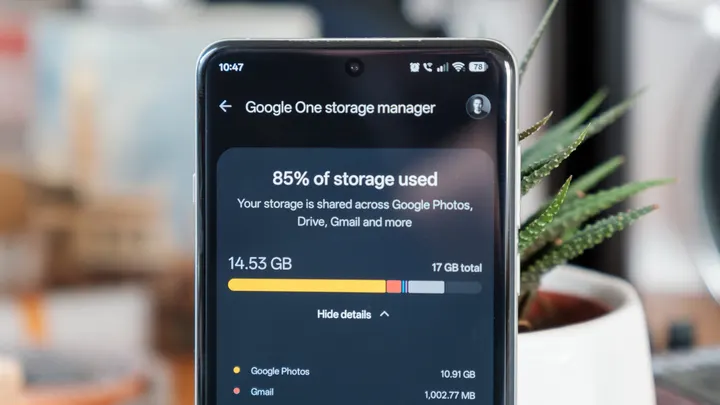
I’ve been cruising in Google’s free storage tier for as long as I can remember, backing up my Photos, emails, and even WhatsApp messages without ever spending a penny. But over the past few months, I’ve been creeping up to the 15GB cap (17GB in my case, as an old-timer who jumped through Google’s security hoops), leading to a barrage of Google One notifications urging me to upgrade to a paid storage tier.
That’s never going to happen. The economics of starting out at just $1.99 a month for 100GB might not sound like much, but I know it won’t be many more years before I hit that limit, too. Then I’d be hooked: forking out $4.99 and then $9.99 every month, in perpetuity, for the luxury of having Google back up my odds and ends. Granted, Google One might be worth the cost if you want Gemini in your docs and double AI usage without forking out for yet another monthly plan. But for me, I’m happy just using the free allowance to keep the most recent things I need within quick reach. I could store everything else on a USB stick or external hard drive for cheap.
So, how do I get rid of those pesky notifications? Well, I obviously needed to delete some stuff, and it turns out that I didn’t have much trouble finding almost 4GB of old tat to get rid of. Here’s how I did it.
Use Google’s tools to free up storage
Thankfully, Google has some built-in tools that should be your first port of call for freeing up space rather than rummaging through your phone manually. You can access the Google One Storage Manager either through your Android phone’s Drive or Photos app, or via a web browser at this link.
Google’s tool offers some useful cleanup suggestions that will help you find large files easily. These are split into photos and videos, emails with large attachments, emails in your bin, spam emails, and large documents in your Drive. Clicking on any of the suggestions shows you all the relevant files by size, putting the biggest space-hogging culprits right at the top. Simply delete the ones you can afford to lose.
If you’re anything like me, you’ll probably discover a bunch of old videos or overly large photos from years ago sitting in there. If you’re not using Photos as your primary backup option, it’s a good idea to pull these off your handset and then remove them from Photos. Remember, deleting from Photos typically deletes the file from your phone as well, so make sure you’ve backed up anything you want to keep before removing it.
I also found plenty of garbage I could delete from Gmail using this tool. My son’s school sends far too many emails each week, often with 4-6MB PDFs attached. Getting rid of a year’s worth of those, some old junk, and outdated invoices freed up over 400MB of my backup space.
My final port of call was to check what else Google was automatically backing up for me. Whether you’re a hoarder of memes or cluttered with WhatsApp groups, it’s a good idea to check that unnecessary folders aren’t also being backed up through Google Photos. To do this, open the Google Photos app and tap the small Folders icon at the top of the homepage. This will show you a list of suitable folders that Photos has found on your device, displaying either the number of items in each folder or whether backups are switched off. If there’s a folder being backed up that probably shouldn’t be, such as your screenshots folder, simply tap its image and toggle Backup off at the top.
By the time I was done, which didn’t take long, I’d found almost 4GB of pictures, documents, and emails that I really didn’t need backed up anymore. Google’s annoying notifications were finally gone, and I could go back to not thinking about cloud storage anymore. At least for a little while, but if you’re not careful, it can be all too easy to fill that space back up again.
How to keep Google storage from filling up again
Ultimately, if you’re backing up even small parts of your life, Google’s 15GB storage limit will run out sooner or later. The years keep rolling by, and unless you’re willing to permanently part with old pictures and files, those “low space” warnings will eventually come back.
Since first cleaning up my phone, I can already see the storage bar creeping back up. So, I’ve adopted a couple of other tricks to help keep my Drive from filling up too quickly. I’ve also ended up storing years’ worth of old photos on my NAS as a long-term backup. This has saved me a bundle compared to cloud storage costs over the years, but it’s a significant upfront investment that I know not everyone is willing to make.
If you’re sticking with free storage for as long as you can, a good idea is to optimize your photo storage sizes. I’ve clocked photos on some more recent flagship phones regularly hitting well in excess of 16MB a snap. Switching to a newer storage format, such as HEIF, instead of JPEG can significantly improve compression without a noticeable drop in quality. Likewise, recording your videos (especially 4K ones) in HEVC instead of H.264 can greatly reduce file sizes. Google Photos and most apps work just fine with these standards, and they can save you a significant amount of space, especially with larger files. You’ll find options for these in the settings menu of most modern camera apps.
If you’re backing up WhatsApp to Drive, another easy win is to take a closer look at its backup settings. Group chats can quietly accumulate gigabytes of photos and videos that you’ll probably never look at again, and backing all of that up can eat into your precious Google storage allowance. Thankfully, WhatsApp lets you exclude videos from future backups, which can make a particularly big difference if your friends and family are prolific sharers. This option may be enabled by default, but it’s worth checking. Head into WhatsApp’s Settings, select Chats, then Chat backup, and toggle off Include videos. You can then tap Back up to create a fresh backup using the new settings. It’s a simple change that could save you a surprising amount of space without sacrificing your chat history.
Google’s 15GB free storage allowance is nice to have but isn’t particularly generous in the long term, especially when it’s shared between Photos, Gmail, Drive, and app backups. The new 5GB cap for Gmail accounts without a phone number is even more restrictive. But running out of space doesn’t necessarily mean it’s time to sign up for another monthly subscription.
A bit of digital housekeeping can go a surprisingly long way. Between clearing out old attachments, trimming unnecessary photo backups, and being more selective about what gets uploaded in the first place, I’ve managed to reclaim several gigabytes without losing anything particularly important. I’ll probably have to repeat the process eventually, but I’d much rather spend a few minutes clearing out digital clutter every now and again than add another recurring bill to my monthly expenses.